Screen Printing Inkjet Film Tips & Tricks
Screen Printing Inkjet Film Tips & Tricks
The most useful screen printing inkjet film tips are to print on the correct coated side, control ink output, preserve fine detail, dry the positive fully, and confirm close exposure contact. Test changes on your actual screen setup and save the settings that pass.
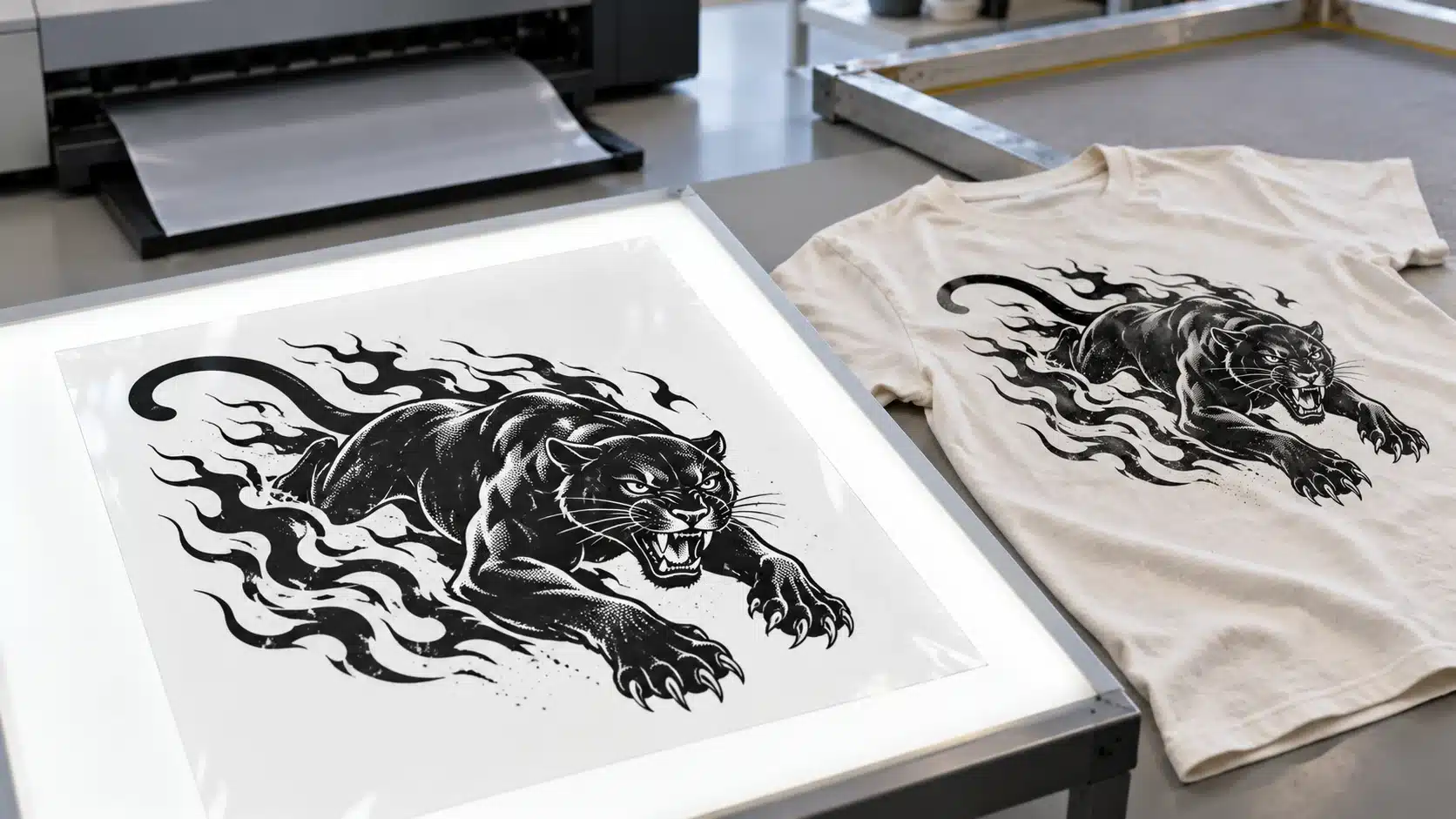
What Makes a Film Positive Ready for Exposure?
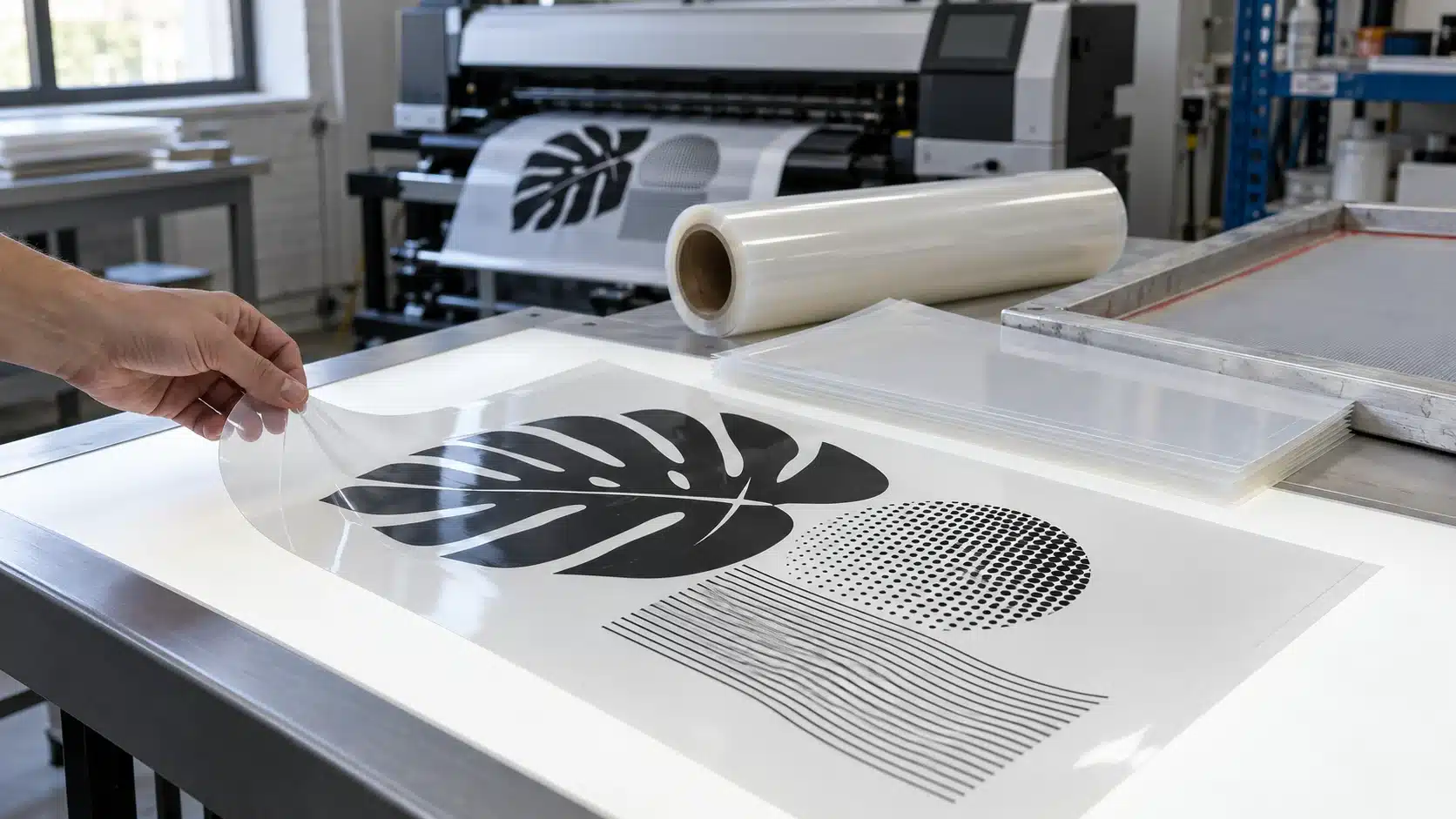
A usable positive must reproduce the artwork as a working exposure mask. Its printed areas block exposing light, while the surrounding clear areas allow light to reach the stencil.
Check four things before sending it to the screen room:
- Image blocking: the printed image protects the intended openings during the validated exposure.
- Detail: lines, small text, dots, and reversed gaps meet the job’s requirements.
- Dimensions: artwork size and separation registration remain consistent.
- Handling and contact: the image is fully dry and the film lies against the stencil without troublesome gaps.
Use the current job as the acceptance standard. A sheet that works for a bold logo still needs separate approval for fine halftones. Inspecting the positive and developing a test screen provide different, useful information.
Before You Print: Check Film, Artwork, and Printer Condition
Tip 1: Match the Ink and Print on the Correct Coated Side
Confirm that the selected film accepts the ink installed in your printer. Dye and pigment compatibility should be checked against the exact grade and formulation.
Find the printing side using the packaging or supplier’s identification method. Surface appearance can help, but retain a marked reference or written loading instruction once the correct side is established.
The coated face must receive the ink under the printhead. Its orientation in the tray depends on the feed path. Give operators an instruction for the actual machine, including which edge enters first. Keep identification tests outside the image area.
Tip 2: Keep the Film Clean, Flat, and Easy to Feed
Handle sheets by their margins. Keep the output area free from loose fibers, dust, and spilled chemicals. Check for fingerprints, scratches, and damaged edges before loading.
Flatness matters at both the printer and exposure frame. Follow the grade’s conditioning instructions when moving stock between environments. Keep unused sheets protected while the printer runs.
Check supported size, thickness, and feed path. Use the specified loading method for sheets or rolls. If the printer rejects transparent media, review its media requirements and the film supplier’s guidance before continuing with a production batch.
Tip 3: Prepare Clean Artwork at the Final Print Size
Check the separation at its intended output dimensions. Include registration marks where needed, and confirm fonts, solid areas, reversed details, and image boundaries.
Enlarge the artwork on screen to inspect rough raster edges and unintended gray pixels. Confirm that solid image areas are sent through the approved output configuration as intended.
Inspect the smallest features at final size, too. A narrow gap that looks clear on a large monitor may be difficult to reproduce in the positive. Use adequate source resolution and clean edges throughout the artwork preparation process.
Tip 4: Check the Nozzles and Print a Small Test Target
Run the printer’s nozzle check and prescribed maintenance routine before judging a new film or profile. Missing nozzles can create gaps or banding that make a material comparison misleading.
Print a compact target with a solid patch, fine lines, reversed gaps, small text, registration marks, and a measured rectangle. Add representative halftones for tonal work.
Examine the target before exposure. Record defects already present on the film so they can be distinguished from changes introduced during screen making. Keep an approved target as a reference for later runs.
During Printing: Control Black Output, Detail, and Registration
Tip 5: Start with a Suitable Media Profile
Begin with the settings recommended for the printer, ink, and film combination. Media type, quality mode, print direction, and ink controls work together.
A photo, glossy, or matte setting is a profile choice to test. Its label alone does not establish suitability. Check the resulting film for image blocking, detail, drying, and consistent feeding.
When comparing settings, print the same target and record each change. Identify the driver or raster image processor (RIP), profile version, and black-channel configuration. Save the approved preset with a clear name that operators can select again.
Tip 6: Balance Ink Load with UV Blocking and Drying
If the image seems weak, check artwork, printing side, and nozzle condition before increasing ink delivery. Then adjust the available controls within the supported workflow.
Assess image blocking at the exposing wavelengths. A visible-light inspection can reveal defects, but UV performance requires an appropriate measurement or exposure test.
Dmax describes the darkest image density. Dmin describes the unprinted or minimum-density area. Record the instrument mode and print conditions when comparing readings.
After an ink-load change, inspect drying, surface damage, dot growth, and clear gaps. Approve the setting that provides sufficient blocking while preserving usable detail. A density figure needs its measurement conditions to be meaningful.
Tip 7: Match Resolution and Halftones to the Required Detail
Keep the units separate: artwork PPI describes image pixels, printer DPI describes output addressability, and halftone LPI describes screen ruling. Mesh count is another specification.
Inspect the required lines and dots on the actual positive. Check isolated highlight dots, shadow-area gaps, and reversed text under magnification. Look for features that have enlarged, merged, or disappeared.
For tonal work, verify dot shape, angle, and the output calibration. Linearization can help relate requested tone values to the printed target when the workflow supports it.
Recheck the developed stencil. Its ability to retain detail also depends on mesh, coating, exposure, and contact. Qualify the full combination for the job’s required features.
Tip 8: Verify Actual Size and Registration across Separations
Confirm the intended scale in the print dialog and check any automatic page-fitting option. Leave sufficient space for the image, registration marks, and handling margins.
Measure a known rectangle after drying. Compare width, length, diagonals, and registration marks across the separation set. Use the job’s accepted tolerance.
If the films disagree, check file scale, media feed calibration, loading, and material condition. Repeat the target after correcting one variable. Keep the measurement record with the output preset so the next operator can confirm the same result.
| Setting | What to Verify | What to Record |
|---|---|---|
| Media profile | Compatible output and handling | Mode, profile name, version |
| Ink output | Blocking, detail, and drying | Ink, channels, ink limit |
| Resolution and screening | Required lines and dots | DPI, LPI, dot settings, curve |
| Direction and speed | Repeatable image quality | Direction and quality mode |
| Scale and feed | Dimensions and registration | Scale and feed calibration |
After Printing: Dry, Inspect, and Expose Consistently
Tip 9: Wait for Safe Handling before Stacking or Exposure
Establish when the positive can be moved, stacked, and placed against the stencil without image transfer. Touch dryness alone may not establish readiness for every contact condition.
Use a sacrificial test area to check handling. Keep printed faces apart until the approved drying interval has passed.
Record temperature, humidity, ink coverage, and waiting time. High humidity can extend drying, while a heavy solid patch may behave differently from sparse line work. Follow the product’s permitted drying conditions.
Check the coated screen’s dryness as well. If the film sticks during exposure, investigate residual moisture in both materials and their compatibility. Correct the cause before changing the exposure timer.
Tip 10: Place the Image Side against the Stencil and Check Contact
For the normal contact-exposure arrangement, position the image-bearing side against the print side of the coated screen. Close contact helps preserve the image edges during exposure.
Clean the exposure glass and inspect the positive for dust or curling. Keep locating tape clear of critical detail and check its effect on contact.
Inspect the whole image area, including corners and larger solid sections. Check the vacuum frame, blanket, or other contact system according to its instructions. A contact problem may affect only part of the positive, so inspect beyond the center.
Tip 11: Validate the Positive on Your Actual Exposure Setup
Test with the mesh, emulsion, coating, and light source used in production. Keep screen preparation and development consistent while comparing positives.
Follow the instructions for an exposure calculator or stepped test. Evaluate the required image openings together with stencil condition and exposure. Retaining detail is useful when the surrounding stencil also meets the production standard.
If fine lines fail to open, inspect the positive and contact before making a large timer adjustment. Record the test conditions and developed result.
For the complete procedure, use the screen exposure guide. The exposure-time guide explains how to establish a tested setting for the screen-making setup.
Tip 12: Save the Settings, Reference Positive, and Storage Record
Keep an approved positive and a photograph or record of its screen result. Label them with the job, film lot, ink, printer, output preset, and date.
Store unprinted stock in its protective packaging under the grade’s specified conditions. Archive fully dried positives using a method that protects the image surface.
Before reuse, inspect contamination, scratches, fading, and dimensions. Confirm suitability for the current exposure setup. Recheck the reference after changes to ink, film grade, equipment, or software. A saved file and a saved preset together make repeat output easier to control.
Common Film Positive Problems and What to Check First
Use this table to choose the next check. The symptoms indicate possible causes; the test should establish which part of the process needs correction.
| Problem | Check First | Next Test |
|---|---|---|
| Ink beads or smears | Printing side, ink match, ink load, drying | Print a small target with the approved loading and settings. |
| Image blocking is insufficient | Artwork, nozzles, channels, output profile | Compare a solid patch and its exposure result. |
| Banding or roller marks | Printer condition, feed path, media, drying | Follow equipment checks, then repeat the target. |
| Dots or clear gaps fill in | Artwork, ink delivery, screening, calibration | Magnify the target and compare a controlled setting change. |
| Separations do not align | Scaling, feed calibration, loading, film condition | Measure a rectangle and the separation marks. |
| Film sticks to the stencil | Film and stencil dryness, humidity, compatibility | Compare fully dried materials under approved conditions. |
| Edges soften or details disappear | Positive image, contact, exposure | Inspect the positive, then run a comparable exposure test. |
| Film curls or scratches | Storage, surface condition, handling, feed | Check flatness and the supported loading method. |
Keep the original target and settings while troubleshooting. If the positive looks correct but the stencil fails, extend the investigation to screen preparation, exposure, and development. Change one variable and repeat the test.
Locate the first stage where a defect appears. If a reversed gap has filled with ink on the positive, return to artwork and output settings. If it is clear on the film but closed on the screen, compare blocking, contact, and exposure. For a registration fault, overlay the dried films and compare their marks before checking the press. This keeps corrections tied to an observed result.
Build a Repeatable Film-Output Check
Use one representative target to check routine output. Set acceptance limits from actual artwork, registration needs, and the approved screen-making process.
Compare a new film lot or setting with the retained reference. First document the existing result, then change one variable and repeat the target and exposure check. Save both results, including failures that explain why a setting was rejected.
Use the final column below for your own production record.
| Check | Acceptance Basis | Actual Result |
|---|---|---|
| Film and ink | Confirmed product compatibility | Record for this run |
| Image and clear areas | Approved blocking and transmission check | Record for this run |
| Fine details | Required lines, text, dots, and gaps | Record for this run |
| Scale and registration | Job dimensions and alignment tolerance | Record for this run |
| Drying and handling | Approved stacking and contact conditions | Record for this run |
| Contact and exposure | Required openings and acceptable stencil condition | Record for this run |
Also record film lot, printer, ink, preset, environment, operator, and test date. Retain a clear photograph when physical samples cannot be stored.
To assess efficiency, total the film, ink, and allocated output labor consumed, including rejects, and divide by approved positives. Apply the same accounting method to each option. Track screen-remake costs separately when their cause has been established.
Record time spent waiting, inspecting, and reprinting as well as the successful print cycle. This helps distinguish a fast output mode from a workflow that delivers usable positives promptly and consistently.
Match the Film to Your Validated Workflow
Review material compatibility when feeding, image quality, or handling remains inconsistent after the printer has been checked. Confirm the grade, dimensions, coated side, and intended ink system.
For a shop qualifying a 13″ × 19″ format, HANZE’s inkjet film specification lists PET construction, one coated printing side, 100, 120, and 140 μm thickness options, and compatibility with dye and pigment inks. Select the sample that fits the printer’s media requirements, then test feeding, drying, detail, and exposure.
The wider inkjet transparency film range can help identify sheet or roll requirements. Confirm the current specification and use the approved sample and output record as references for repeat purchasing.
For a new thickness, include feed and contact checks in the trial; a change in handling can matter even when the artwork is unchanged.
Frequently Asked Questions
Do Film Positives Need to Be Mirrored?
Set orientation from the final print and exposure arrangement. Check text or an asymmetric mark with the image side positioned against the stencil. Verify the intended result before committing the full separation set.
Can You Print Film Positives without RIP Software?
Yes, if the driver and artwork workflow produce acceptable blocking, detail, and dimensions. A RIP provides additional control for jobs that need screening, ink management, or calibration. Approve the output against the work being produced.
Can You Print the Same Film Positive Twice?
Treat a second print job on the same sheet as a separate setup requiring approval. Check repeat-feed registration, coating capacity, drying, and image detail. Approve a reliable result from one print job to reduce routine handling and alignment variables.
Can You Stack Two Film Positives for Exposure?
Evaluate the stacked setup separately. Accurate alignment, contact, and retention of small features all need checking on the developed screen. Increased blocking alone does not establish a successful result. Keep the approved arrangement documented.
Can You Use a Hair Dryer to Dry Inkjet Film?
Use the film’s approved drying conditions. A handheld dryer introduces variable local temperature and airflow, so suitability needs confirmation. For repeat production, establish a controlled drying method and check handling readiness before contact with the stencil.
Can You Touch Up a Film Positive with a Marker?
Only consider a correction after checking coating compatibility and the correction’s blocking during exposure. Inspect the repaired area on the developed screen. Reprint when the defect affects critical lettering, fine dots, or registration features.
Can You Clean a Printed Film Positive?
Follow the grade’s cleaning instructions. Loose dust and contamination within the image require different treatment. A waterproof label does not establish that wet wiping or a solvent is suitable for the printed coating. Replace a damaged positive.
Can Inkjet Film Be Used in a Laser Printer?
Use a separate film explicitly approved for the laser printer. The linked HANZE inkjet specification excludes laser use. Transparent appearance does not establish compatibility with toner and fusing conditions; select the grade for the intended output technology.